Transform footage
Keep the performance. Change the visual world.
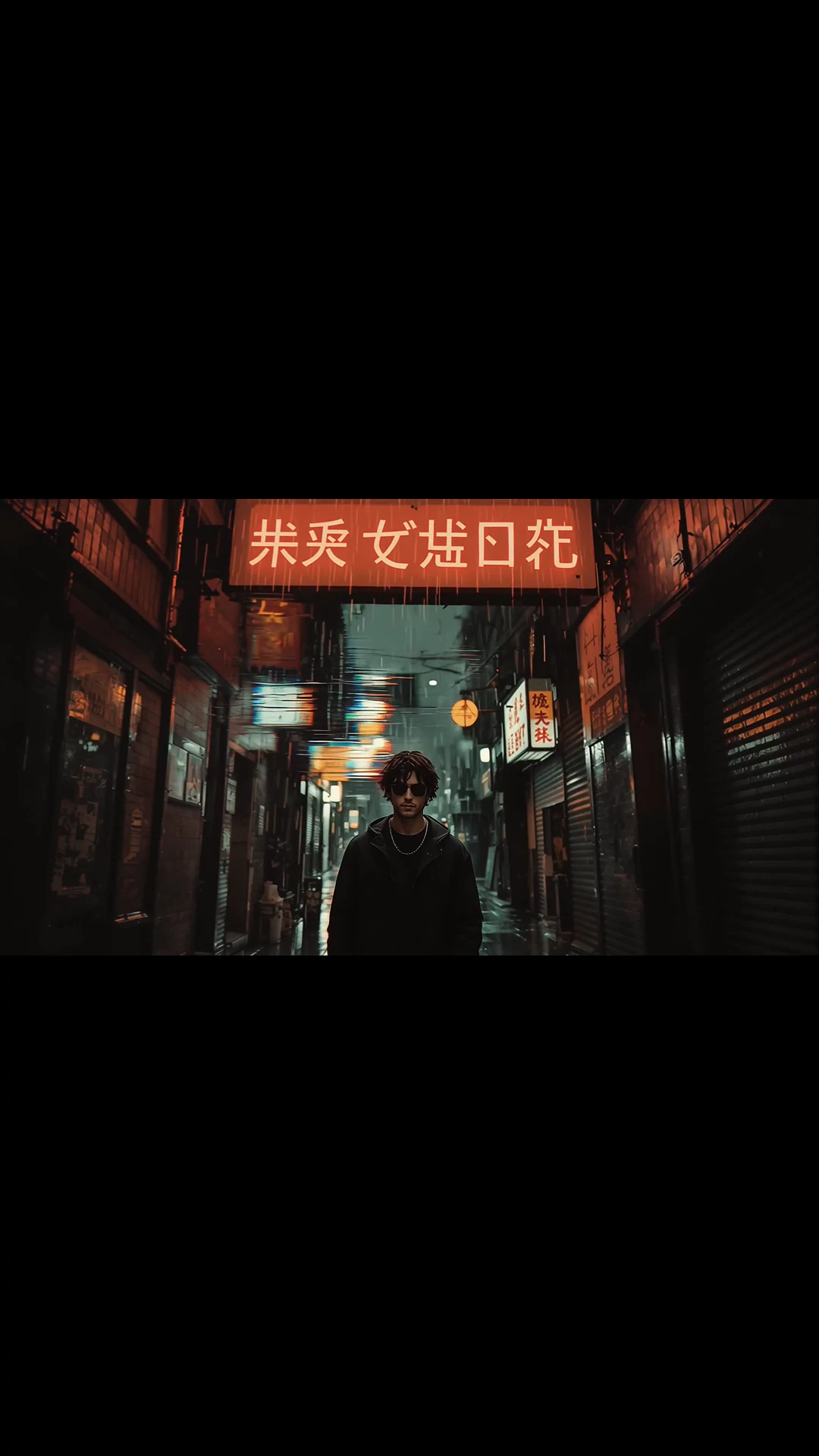
Use existing footage as the motion source, then redirect its appearance, environment, tone, or visual treatment. FoxCut keeps the source action useful while opening a new art direction.
Core controls
What Video to Video AI Generator needs to control.
Motion transfer
Use the timing and choreography of a source clip as generation guidance.
Style redirection
Change material, lighting, environment, era, or visual language without reshooting.
Shot continuity
Keep useful performance structure while generating a new visual treatment.
Practical planning
What to decide before using Video to Video.
Decide what the source clip contributes: timing, choreography, camera motion, pose, or scene layout. Then list what may change—materials, era, lighting, environment, or rendering style—and what must survive the transformation.
Use footage with a readable silhouette and clean temporal structure. A busy edit, occluded face, or motion-blurred source gives the transformation fewer stable facts to preserve and makes failures difficult to attribute.
- Motion transfer: Use the timing and choreography of a source clip as generation guidance.
- Style redirection: Change material, lighting, environment, era, or visual language without reshooting.
- Shot continuity: Keep useful performance structure while generating a new visual treatment.

Quality control
How to review a transform footage result.
The most common failure is style overwhelming performance continuity. Lower transformation strength, preserve the subject and camera path explicitly, and test a short representative segment before committing a long source clip.
A useful review follows the workflow in order: upload footage, then describe the transformation, then compare and refine. Change one variable per comparison so the next render answers a specific question.
- Upload footage: Choose a clip with a readable subject, stable timing, and the motion you want to retain.
- Describe the transformation: Specify what should change and which characteristics must remain stable.
- Compare and refine: Evaluate subject fidelity, temporal consistency, and the strength of the new look.
How it works
A practical Transform footage workflow.
- Step 1
Upload footage
Choose a clip with a readable subject, stable timing, and the motion you want to retain.
- Step 2
Describe the transformation
Specify what should change and which characteristics must remain stable.
- Step 3
Compare and refine
Evaluate subject fidelity, temporal consistency, and the strength of the new look.
Built for real work
Use cases
- Campaign restyling
- Music-video treatments
- Virtual production
- Motion-reference generation
Continue exploring
Related FoxCut workflows
Questions to resolve
Video to Video AI Generator FAQ
What should I prepare before using Video to Video AI Generator?
Decide what the source clip contributes: timing, choreography, camera motion, pose, or scene layout. Then list what may change—materials, era, lighting, environment, or rendering style—and what must survive the transformation. Start with choose a clip with a readable subject, stable timing, and the motion you want to retain.
How should I evaluate the result?
Use footage with a readable silhouette and clean temporal structure. A busy edit, occluded face, or motion-blurred source gives the transformation fewer stable facts to preserve and makes failures difficult to attribute. Review the output against the intended use, not against a vague idea of visual quality.
What is the most common failure to watch for?
The most common failure is style overwhelming performance continuity. Lower transformation strength, preserve the subject and camera path explicitly, and test a short representative segment before committing a long source clip.
Make the shot. Keep the vision.
Move from prompt to directed generation with camera, character, reference, model, and workflow controls in one studio.
Transform a video