AI video effect
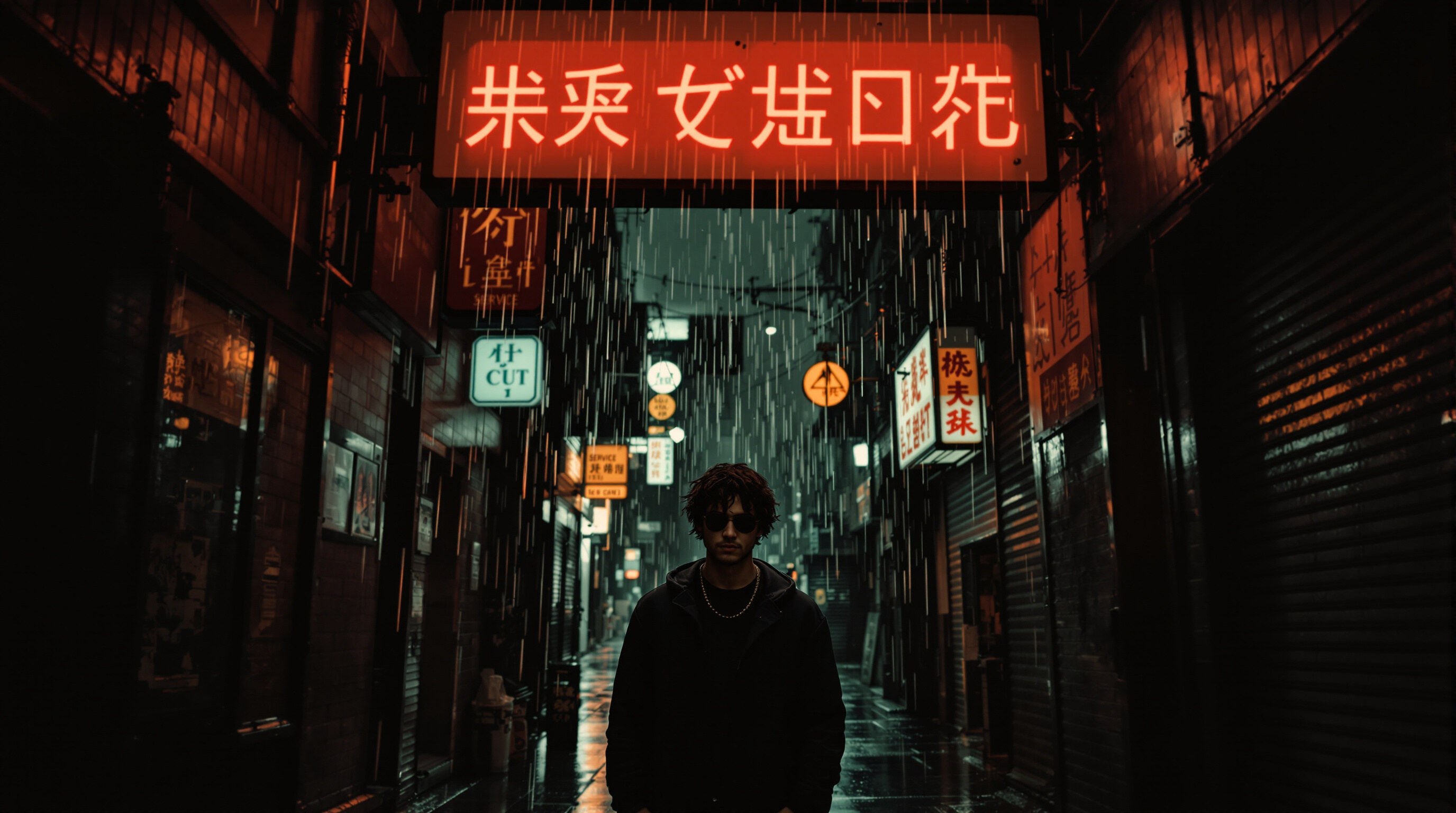
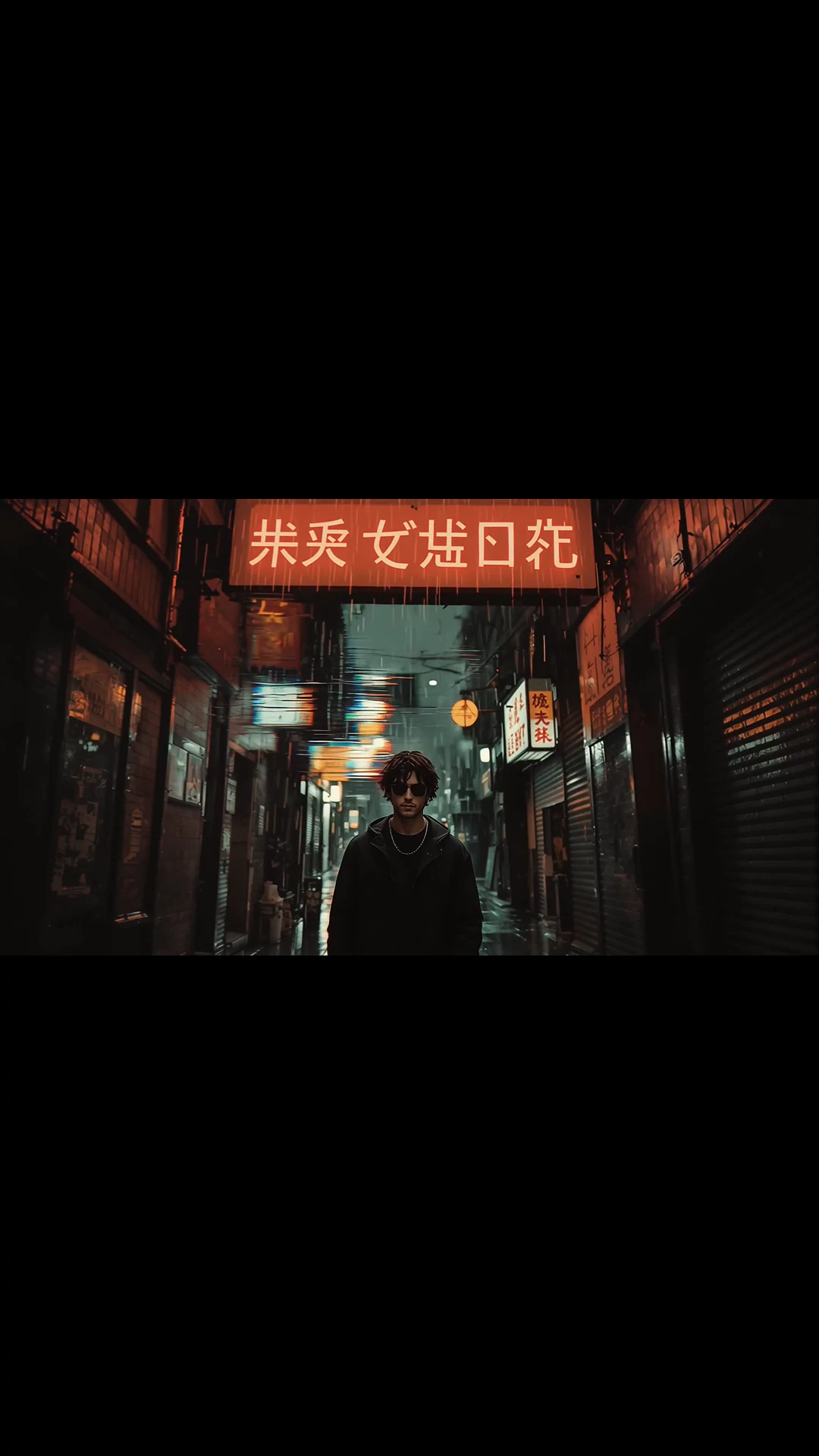
Digital Glitch, directed as a usable shot.
Break a scene into deliberate digital distortion, frame tearing, and signal artifacts. This FoxCut preset combines a tested prompt recipe with a dedicated preview so you can understand the transformation before spending credits.
Core controls
What Digital Glitch AI Video Effect needs to control.
Designed for a readable result
Break a scene into deliberate digital distortion, frame tearing, and signal artifacts.
Stable source preparation
Use a clear subject, sufficient surrounding space, and lighting that preserves important edges during the transformation.
Prompt recipe included
The preset contributes tested transformation language while your prompt continues to define the original scene.
Source-to-result method
Prepare a source that makes digital glitch measurable.
The preview demonstrates the intended transformation. The checks below describe what to protect when recreating it; they do not promise identical output from every model or seed.
Source preparation
Choose a simple, high-contrast subject whose silhouette will remain recognizable through scan lines, channel offsets, and frame tearing.
Acceptance signal
The distortion arrives as a timed visual event while the underlying shot still has a clear subject and direction.
Likely failure and correction
Stacking every artifact at full strength produces unreadable noise. Specify one dominant glitch behavior and a clean landing state.
Evidence basis, checked 8/28/2026: Generated preview plus the visible FoxCut preset contract. A multi-run model benchmark has not yet been published for this effect.
Practical planning
What to decide before using Digital Glitch.
Choose a simple, high-contrast subject whose silhouette will remain recognizable through scan lines, channel offsets, and frame tearing. Decide where the transformation begins, how it propagates, which parts of the composition remain unchanged, and what the final state should look like. Those boundaries turn digital glitch into a directed event instead of a full-frame surprise.
The distortion arrives as a timed visual event while the underlying shot still has a clear subject and direction. Review the source and output side by side so identity, silhouette, camera position, unaffected geometry, and the effect boundary can be judged against the same visual anchor.
- Designed for a readable result: Break a scene into deliberate digital distortion, frame tearing, and signal artifacts.
- Stable source preparation: Use a clear subject, sufficient surrounding space, and lighting that preserves important edges during the transformation.
- Prompt recipe included: The preset contributes tested transformation language while your prompt continues to define the original scene.
Quality control
How to review an AI video effect result.
Stacking every artifact at full strength produces unreadable noise. Specify one dominant glitch behavior and a clean landing state.
A useful review follows the workflow in order: choose the source, then apply the effect, then review continuity. Change one variable per comparison so the next render answers a specific question.
- Choose the source: Upload a clean image or clip whose subject is easy to identify.
- Apply the effect: Open the Digital Glitch preset and describe what should remain stable during the transformation.
- Review continuity: Check identity, geometry, temporal consistency, and whether the effect has a clear visual conclusion.
How it works
A practical AI video effect workflow.
- Step 1
Choose the source
Upload a clean image or clip whose subject is easy to identify.
- Step 2
Apply the effect
Open the Digital Glitch preset and describe what should remain stable during the transformation.
- Step 3
Review continuity
Check identity, geometry, temporal consistency, and whether the effect has a clear visual conclusion.
Built for real work
Use cases
- Social video hooks
- Music-video transitions
- Campaign reveals
- Narrative visual effects
Continue exploring
Related FoxCut workflows
Questions to resolve
Digital Glitch AI Video Effect FAQ
What should I prepare before using Digital Glitch AI Video Effect?
Choose a simple, high-contrast subject whose silhouette will remain recognizable through scan lines, channel offsets, and frame tearing. Decide where the transformation begins, how it propagates, which parts of the composition remain unchanged, and what the final state should look like. Those boundaries turn digital glitch into a directed event instead of a full-frame surprise. Start with upload a clean image or clip whose subject is easy to identify.
How should I evaluate the result?
The distortion arrives as a timed visual event while the underlying shot still has a clear subject and direction. Review the source and output side by side so identity, silhouette, camera position, unaffected geometry, and the effect boundary can be judged against the same visual anchor. Review the output against the intended use, not against a vague idea of visual quality.
What is the most common failure to watch for?
Stacking every artifact at full strength produces unreadable noise. Specify one dominant glitch behavior and a clean landing state.
Make the shot. Keep the vision.
Move from prompt to directed generation with camera, character, reference, model, and workflow controls in one studio.
Use Digital Glitch